Getting Started
How to use this UAT guide and run your first test
Getting Started with UAT Testing
Welcome to the Circle USP User Acceptance Testing (UAT) Guide. This guide will walk you through how to use this site and complete your assigned tests.
What is UAT?
User Acceptance Testing is the final phase of testing where real users verify that the system works correctly for their daily tasks. Your feedback is critical to ensuring Circle USP meets your needs before go-live.
Before You Begin
Make sure you have:
- Access to the UAT environment: https://unified.avnc.net
- Your test credentials: Each test case includes the login credentials you should use
- A modern web browser: Chrome or Edge (latest version)
- This guide open: Keep it open in a separate tab or window
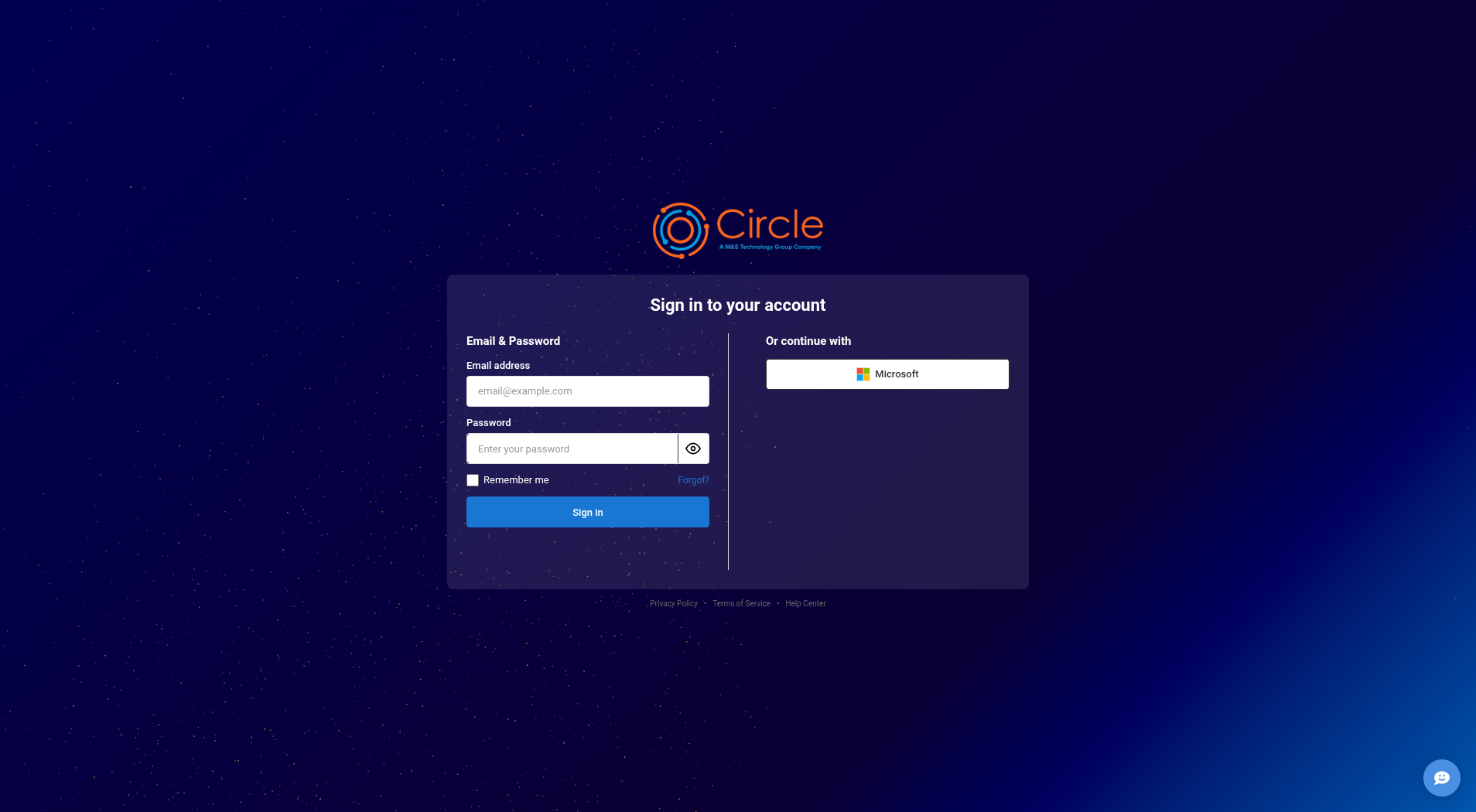
When you navigate to the UAT environment, you’ll see the login page:
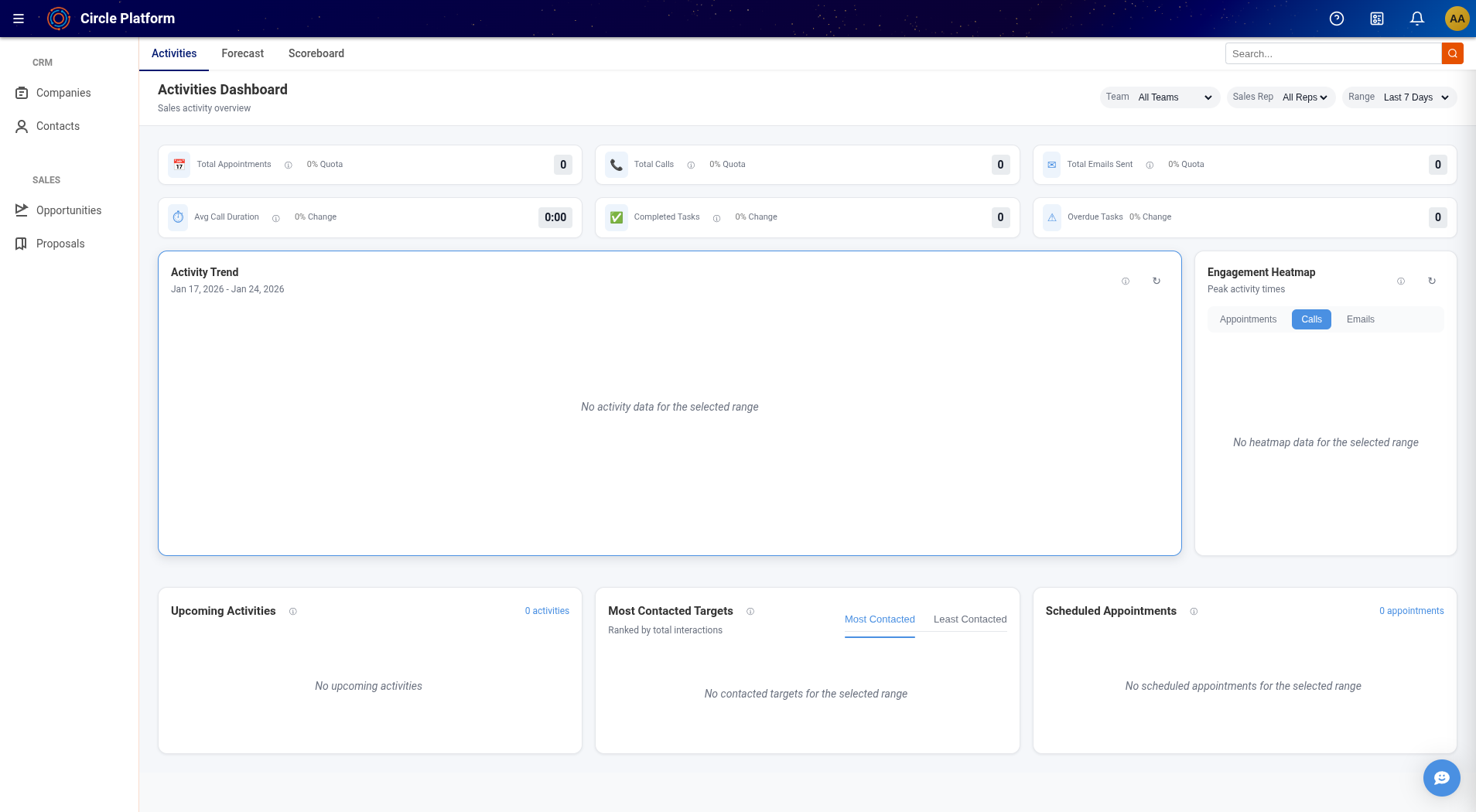
After logging in, you’ll land on the Dashboard:
How to Use This Guide
Step 1: Start a Test Session
Click the “Start Test Session” button in the top-right corner and enter your 6-character tester code. This code was assigned to you by the project team - contact Steve Allen if you don’t have one.
Your tester code links your testing activity to your identity for tracking and accountability.
Step 2: Navigate to Your Tests
Use the sidebar on the left to find test cases by module:
- Authentication - Login, logout, password reset
- Companies & Contacts - CRM functionality
- Opportunities - Sales pipeline
- Proposals - Quote generation
- And more…
Step 3: Run Each Test
For each test case:
- Read the Prerequisites - Make sure you meet any requirements before starting
- Note the Test Credentials - Use the provided login if specified
- Follow Each Step - Perform the action described
- Mark Your Result - Click Pass, Fail, or Skip for each step
- Add Notes - If a step fails, describe what happened
Step 4: Report Issues
If you find a bug:
- Copy the Reference Code shown at the top of the test case page
- Click the Userback button (bottom-right of the UAT environment)
- Paste the Reference Code at the start of your description
- Take a screenshot or record your screen
- Describe what happened vs. what you expected
- Submit the report
The reference code (e.g., UAT-M4X7K2 / TEST-AUTH-001 / Step 3) helps the dev team trace your report back to the exact test and step.
Tips for Effective Testing
- Test as yourself: Approach it like a normal workday
- Don’t skip steps: Each step is important for validation
- Be specific: When reporting issues, include exact error messages
- Note workarounds: If you found a way around an issue, mention it
- Ask questions: Reach out to the project team if anything is unclear
Getting Help
- Technical issues: Contact Alex H or the dev team via Teams
- Test case questions: Contact Steve Allen or Ben
- Access problems: Contact Circle IT
Ready to begin? Head to Test Cases and start with your assigned module.